-
[Microsoft Foundry] Microsoft Foundry를 활용한 LLM + RAG 구현 (3)Azure 2025. 11. 20. 11:08
* 이전 게시글
1. [Microsoft Foundry] Microsoft Foundry를 활용한 LLM + RAG 구현 (1)
https://bbiyak-cloud.tistory.com/203
[Microsoft Foundry] Microsoft Foundry를 활용한 LLM + RAG 구현 (1)
Microsoft FoundryAzure에서 RAG 기반 생성형 AI를 구현하기 위한 완전한 엔드투엔드 플랫폼AI 모델 생성·배포·관리·모니터링까지 한 곳에서 수행할 수 있도록 만든 환경PaaS 기반 생성형 AI 플랫폼원래
bbiyak-cloud.tistory.com
2. [Microsoft Foundry] Microsoft Foundry를 활용한 LLM + RAG 구현 (2)
https://bbiyak-cloud.tistory.com/204
[Microsoft Foundry] Microsoft Foundry를 활용한 LLM + RAG 구현 (2)
* 이전 게시글1. [Microsoft Foundry] Microsoft Foundry를 활용한 LLM + RAG 구현 (1)https://bbiyak-cloud.tistory.com/203 [Microsoft Foundry] Microsoft Foundry를 활용한 LLM + RAG 구현 (1)Microsoft FoundryAzure에서 RAG 기반 생성형 AI를
bbiyak-cloud.tistory.com
Frontend VM 구성
Frontend VM은 사용자와 LLM/RAG 시스템을 연결하는 “UI + API 게이트웨이” 역할을 수행한다.
✅ 1. 사용자 인터페이스 제공
- Chat UI, 검색창, 업로드 화면 등 사용자가 상호작용하는 화면 제공
- Stream 출력 처리(ChatGPT처럼 글자 하나씩 출력)
✅ 2. API Gateway 역할
- 사용자 요청을 LLM API와 RAG(Search API) 로 라우팅
- 예: 질문 입력 → LLM API 호출 → RAG 결과 반영
즉, 백엔드와 연결되는 중간 관문
✅ 3. 인증·보안
- 사용자 로그인/토큰(JWT) 관리
- API 호출 시 인증 헤더 삽입
- 기본적인 입력 검증(프롬프트 인젝션 1차 방어)
✅ 4. 파일 업로드 + 인덱싱 트리거 (선택적)
- 사용자가 업로드한 문서를 Backend API로 전달
- 문서 업로드 상태/결과 UI 제공
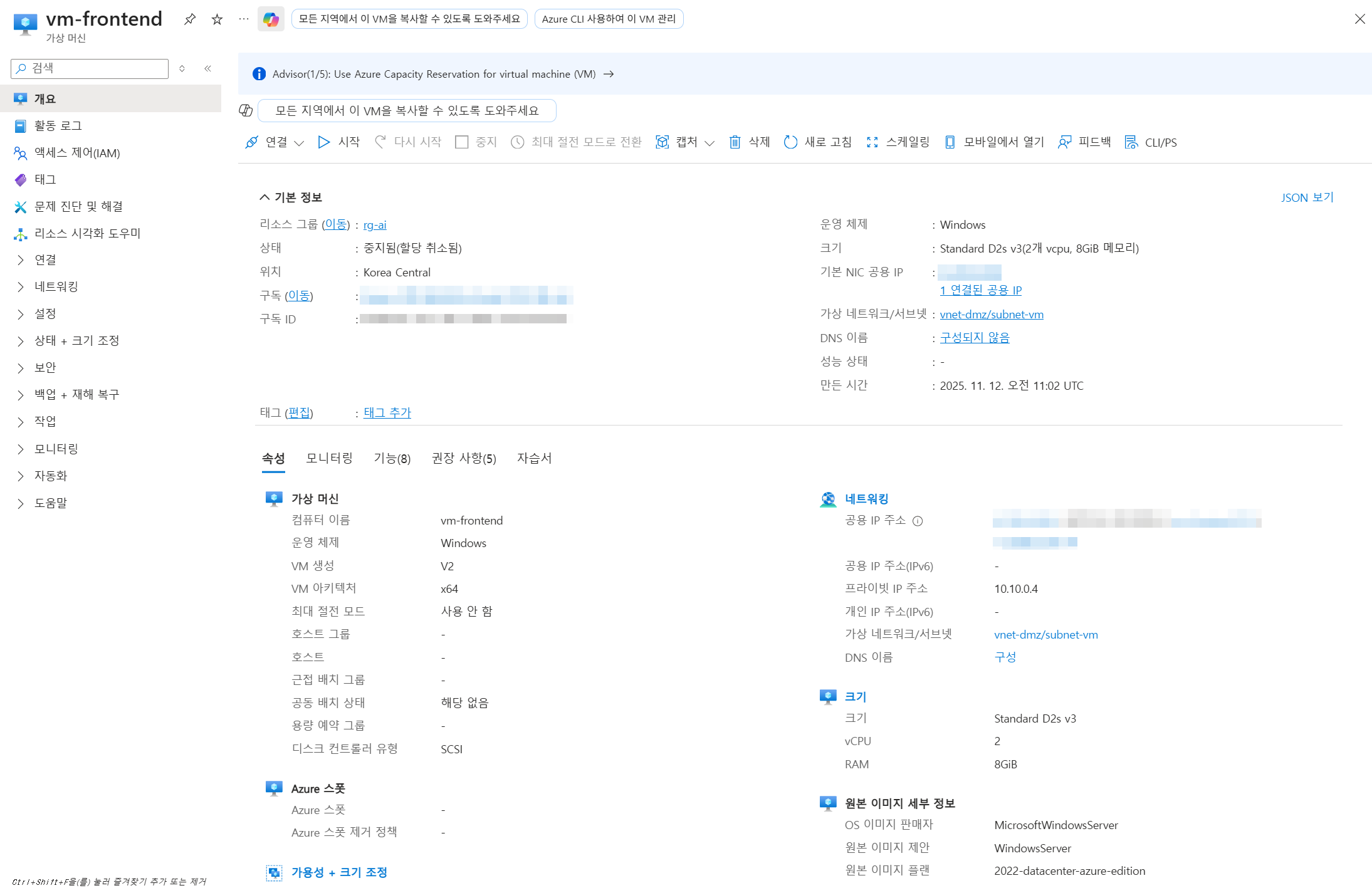
VM 생성
- 리전 : Korea Central
- 리소스 그룹 : rg-ai
- 가상 네트워크/서브넷 : vnet-dmz/subnet-vm
- 이미지 : Windows 2022
- SKU : Standard D2s v3 (2 vcpu, 8GiB)
Python + Flask 설치
✅ Flask란?
- Python으로 만든 초경량 웹 프레임워크
- Django처럼 무겁지 않고, 기능이 최소화된 “마이크로 프레임워크”
- API 서버, 챗봇 백엔드, LLM 서비스 백엔드에 자주 사용됨
- 즉, LLM/RAG 서비스에서 백엔드 API 서버를 빠르게 만드는 데 가장 널리 쓰는 가벼운 웹 서버 프레임워크
# VM 내에서 최신 Python 설치
아래 사이트에서 최신 Python 버전을 설치한다.
설치 시 Use admin privileges when installing py.eye와 Add python.eye to PATH 체크 후 설치
Python Releases for Windows | Python.org
Python Releases for Windows
The official home of the Python Programming Language
www.python.org
# Flask 설치
cmd창 관리자 권한 실행 후, pip install Flask 실행
pip install Flask# 재부팅 시에도 항상 Python Flask가 기동되도록 설정하기
# nssm 다운로드 및 압축해제
NSSM - the Non-Sucking Service Manager
NSSM - the Non-Sucking Service Manager Windows 10, Server 2016 and newer 2017-04-26: Users of Windows 10 Creators Update or newer should use prelease build 2.24-101 or any newer build to avoid an issue with services failing to start. If for some reason you
nssm.cc
# System Properties > Advanced > Environment Variables

# Path > Edit

# nssm 파일이 있는 path를 추가 후 "OK"

# cmd창 관리자 권한 실행 후, 서비스 생성
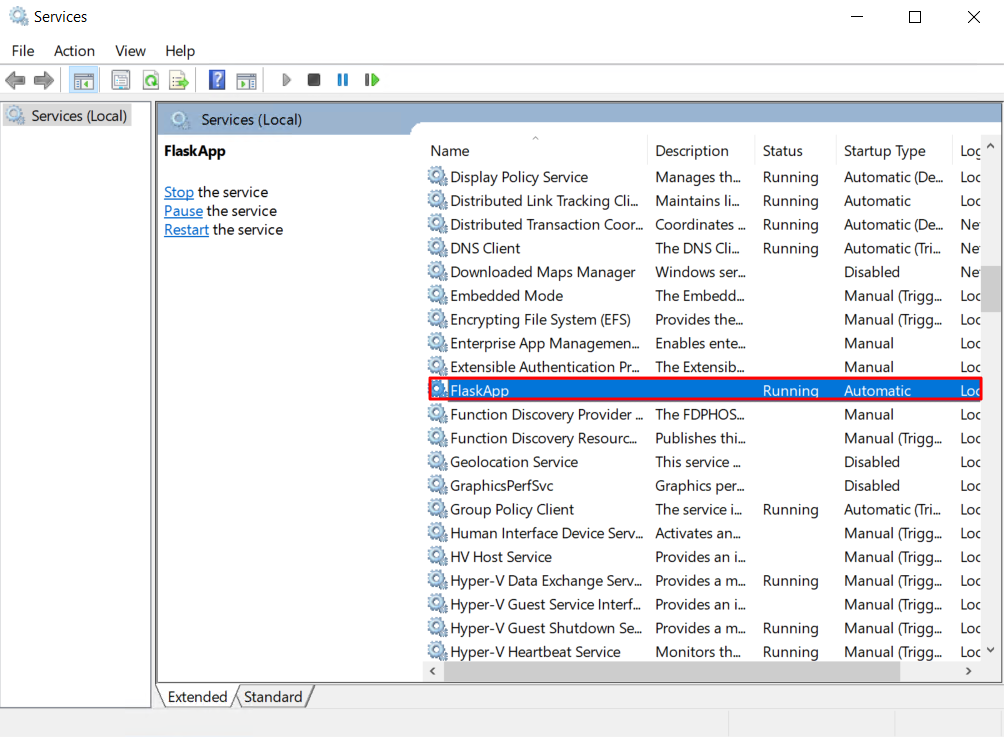
nssm install FlaskApp# Service에서 FlaskApp이 정상적으로 실행중인지 확인
Flask 프로젝트 생성
해당 구조로 폴더 및 파일을 생성하자
Flask Project Structure
 ├── .env
 ├── templates/
 │   └── index.html
 └── app.py
# .env 파일
# Azure OpenAI Resource
AI_OPENAI_API_KEY="Microsoft Foundry API 키"
AI_OPENAI_ENDPOINT="OpenAI 언어 API"
AI_OPENAI_DEPLOYMENT="사용한 LLM 모델"

# Azure AI Search
AZURE_SEARCH_ENDPOINT="AI Search URL"
AZURE_SEARCH_API_KEY="AI Search API 키"
AZURE_SEARCH_INDEX="AI Search 인덱스명"

# (선택) Azure Storage (파일 업로드 시 필요)
AZURE_STORAGE_CONNECTION_STRING="스토리지 계정 연결 문자열"
AZURE_STORAGE_CONTAINER="컨테이너명"
AZURE_STORAGE_ACCOUNT="스토리지 계정명"
[#Azure OpenAI Resource]

AI_OPENAI_API_KEY="Microsoft Foundry API 키" : Foundry의 키 입력
AI_OPENAI_ENDPOINT="OpenAI 언어 API" : OpenAI의 언어 API 입력
AI_OPENAI_DEPLOYMENT="사용한 LLM 모델" : gpt-4o[#Azure AI Search]


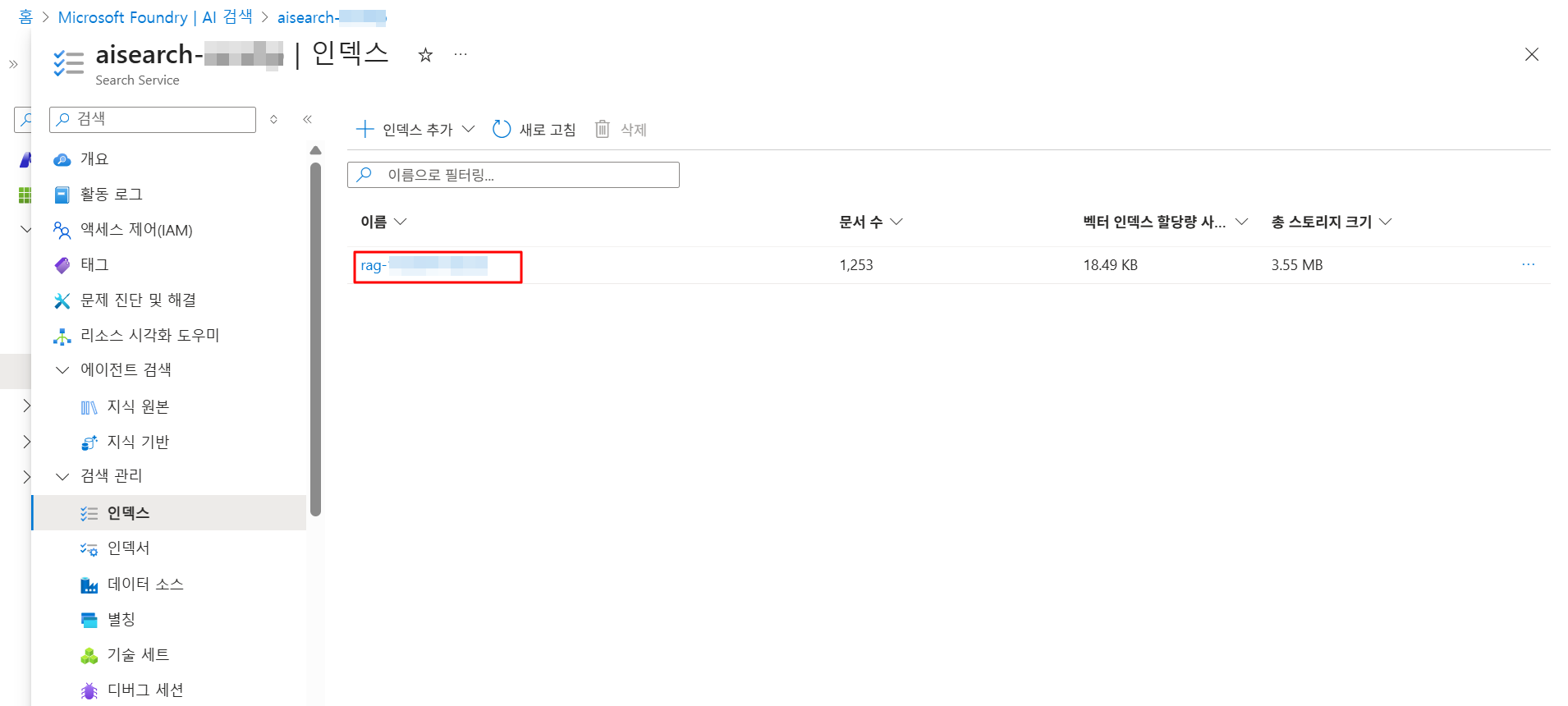
AZURE_SEARCH_ENDPOINT="AI Search URL" : AI Search의 URL 입력AZURE_SEARCH_API_KEY="AI Search API 키" : AI Search의 기본 관리자 키 입력
AZURE_SEARCH_INDEX="AI Search 인덱스명" : AI Search의 인덱스명 입력
[# Azure Storage]

AZURE_STORAGE_CONNECTION_STRING="스토리지 계정 연결 문자열" : 연결 문자열 입력
AZURE_STORAGE_CONTAINER="컨테이너명" : 컨테이너명 입력
AZURE_STORAGE_ACCOUNT="스토리지 계정명" : 스토리지 계정명 입력
# templates/index.html 파일
<!DOCTYPE html>
<html lang="ko">
<head>
  <meta charset="utf-8" />
  <meta name="viewport" content="width=device-width,initial-scale=1" />
  <title>Chatbot with 블라블라 Employees</title>
  <style>
    body { font-family: "Segoe UI", Arial, sans-serif; background:#f3f6fb; margin:0; padding:30px; }
    .app { max-width: 900px; margin: 0 auto; }
    .header { background:linear-gradient(90deg,#0078d4,#005fa3); color:#fff; padding:16px; border-radius:10px; text-align:center; font-weight:600; }
    .main { display:flex; gap:16px; margin-top:16px; }
    .left { flex:1; background:#fff; padding:16px; border-radius:10px; box-shadow:0 6px 20px rgba(0,0,0,0.06); }
    .right { width:320px; background:#fff; padding:16px; border-radius:10px; box-shadow:0 6px 20px rgba(0,0,0,0.06); }
    .chatbox { height:420px; overflow:auto; border:1px solid #eee; padding:12px; border-radius:8px; background:#fafbfd; }
    .msg { margin:10px 0; padding:10px; border-radius:10px; max-width:85%; white-space:pre-wrap; }
    .user { background:#e6f6ff; align-self:flex-end; color:#035; text-align:right; }
    .bot { background:#f2f4f6; align-self:flex-start; color:#222; text-align:left; }
    .input-row { display:flex; gap:8px; margin-top:12px; }
    input[type="text"] { flex:1; padding:10px; border-radius:8px; border:1px solid #ddd; }
    button { padding:10px 14px; border-radius:8px; border:none; background:#0078d4; color:#fff; cursor:pointer; }
    .file-row { display:flex; gap:8px; align-items:center; margin-bottom:8px; }
    .small { font-size:13px; color:#666; margin-top:8px; }
    .doc { padding:8px; border-bottom:1px solid #f1f1f1; font-size:14px; }
    pre { white-space:pre-wrap; word-break:break-word; }
  </style>
</head>
<body>
  <div class="app">
    <div class="header">💬 Chatbot with 블라블라 Employees</div>

    <div class="main">
      <div class="left">
        <div id="chat" class="chatbox"></div>

        <div class="input-row">
          <input id="message" type="text" placeholder="질문을 입력하세요..." />
          <button onclick="send()">전송</button>
        </div>

        <div class="small">검색된 문서를 기반으로 답변을 생성합니다.</div>
      </div>

      <div class="right">
        <h4>📁 파일 업로드 & 인덱싱</h4>
        <div class="file-row">
          <input id="fileInput" type="file" />
          <button onclick="upload()">업로드</button>
        </div>
        <div id="uploadStatus" class="small"></div>

        <hr style="margin:12px 0" />
        <h4>🔎 최근 검색 문서</h4>
        <div id="docsList" style="max-height:300px; overflow:auto;"></div>
      </div>
    </div>
  </div>

<script>
async function send(){
  const q = document.getElementById("message").value.trim();
  if(!q) return;
  append('user', q);
  document.getElementById("message").value = '';
  append('bot', '답변 생성중...');

  try{
    const res = await fetch('/chat', {method:'POST', headers:{'Content-Type':'application/json'}, body: JSON.stringify({message: q})});
    const dataText = await res.text();
    let data;
    try { data = JSON.parse(dataText); } catch(e){ data = { error: '서버 응답 파싱 실패', raw: dataText }; }

    // 임시 메세지 제거
    removeTemp();

    if(data.response) {
      append('bot', data.response);
      // retrieved docs 있으면 사이드바 갱신
      if(data.retrieved_docs){
        const docsList = document.getElementById('docsList');
        docsList.innerHTML = '';
        data.retrieved_docs.forEach(d => {
          const el = document.createElement('div');
          el.className = 'doc';
          el.innerHTML = `<strong>${d.title || 'Untitled'}</strong><br><small>${(d.chunk||'').slice(0,180)}${(d.chunk && d.chunk.length>180 ? '...' : '')}</small>`;
          docsList.appendChild(el);
        });
      }
    } else {
      append('bot', '⚠️ 오류: ' + (data.error || JSON.stringify(data)));
    }
  }catch(err){
    removeTemp();
    append('bot', '⚠️ 네트워크 오류: ' + err.message);
  }
}

function append(side, text){
  const box = document.getElementById('chat');
  const el = document.createElement('div');
  el.className = 'msg ' + (side==='user'?'user':'bot');
  el.textContent = (side==='user'?'👤 ':'🤖 ') + text;
  box.appendChild(el);
  box.scrollTop = box.scrollHeight;
}

function removeTemp(){
  const box = document.getElementById('chat');
  for(let i = box.children.length -1; i>=0; i--){
    const c = box.children[i];
    if(c.classList.contains('bot') && c.textContent.includes('답변 생성중')){
      c.remove(); break;
    }
  }
}

async function upload(){
  const inp = document.getElementById('fileInput');
  if(!inp.files.length){ alert('파일을 선택하세요'); return; }
  const file = inp.files[0];
  const form = new FormData();
  form.append('file', file);
  const status = document.getElementById('uploadStatus');
  status.textContent = '⬆️ 업로드 중...';

  try{
    const res = await fetch('/upload', {method:'POST', body: form});
    const txt = await res.text();
    let data;
    try{ data = JSON.parse(txt); } catch(e){ data = { error: '서버 응답 파싱 실패', raw: txt }; }

    if(data.message) {
      status.textContent = '✅ ' + data.message;
    } else {
      status.textContent = '⚠️ 오류: ' + (data.error || JSON.stringify(data));
    }
  }catch(err){
    status.textContent = '❌ 업로드 실패: ' + err.message;
  }
}
</script>
</body>
</html>
# app.py 파일
# app.py
import os
import io
import uuid
import json
import base64
import requests
from datetime import datetime
from flask import Flask, render_template, request, jsonify
from dotenv import load_dotenv

# PDF 텍스트 추출용
try:
    import PyPDF2
except ImportError:
    PyPDF2 = None

load_dotenv()

app = Flask(__name__, template_folder='templates', static_folder='static')

# ---------- 환경변수 ----------
AI_OPENAI_API_KEY = os.getenv("AI_OPENAI_API_KEY")
AI_OPENAI_ENDPOINT = os.getenv("AI_OPENAI_ENDPOINT")
AI_OPENAI_DEPLOYMENT = os.getenv("AI_OPENAI_DEPLOYMENT")

AZURE_SEARCH_ENDPOINT = os.getenv("AZURE_SEARCH_ENDPOINT")
AZURE_SEARCH_API_KEY = os.getenv("AZURE_SEARCH_API_KEY")
AZURE_SEARCH_INDEX = os.getenv("AZURE_SEARCH_INDEX")

AZURE_STORAGE_CONNECTION_STRING = os.getenv("AZURE_STORAGE_CONNECTION_STRING")
AZURE_CONTAINER_NAME = os.getenv("AZURE_CONTAINER_NAME") or "uploads"

# ---------- 유틸: 텍스트 추출 ----------
def extract_text_from_file(file_stream, filename):
    name = filename.lower()
    if name.endswith((".txt", ".csv")):
        file_stream.seek(0)
        raw = file_stream.read()
        return raw.decode('utf-8', errors='replace') if isinstance(raw, bytes) else str(raw)
    elif name.endswith(".pdf"):
        if PyPDF2 is None:
            raise RuntimeError("PDF 추출을 위해 PyPDF2 필요: pip install PyPDF2")
        file_stream.seek(0)
        reader = PyPDF2.PdfReader(file_stream)
        pages = [p.extract_text() or "" for p in reader.pages]
        return "\n".join(pages)
    else:
        file_stream.seek(0)
        raw = file_stream.read()
        return raw.decode('utf-8', errors='replace') if isinstance(raw, bytes) else str(raw)

# ---------- 유틸: 청크화 ----------
def chunk_text(text, chunk_size=1200, overlap=200):
    if not text:
        return []
    chunks = []
    start = 0
    while start < len(text):
        end = start + chunk_size
        chunk = text[start:end]
        chunks.append(chunk.strip())
        start = end - overlap
        if start < 0:
            start = end
    return chunks

# ---------- Azure Search 업로드 ----------
def push_documents_to_search(docs):
    if not (AZURE_SEARCH_ENDPOINT and AZURE_SEARCH_API_KEY and AZURE_SEARCH_INDEX):
        raise RuntimeError("Azure Search 설정 필요")
    url = f"{AZURE_SEARCH_ENDPOINT}/indexes/{AZURE_SEARCH_INDEX}/docs/index?api-version=2023-11-01"
    headers = {"Content-Type": "application/json", "api-key": AZURE_SEARCH_API_KEY}
    payload = {"value": [{"@search.action":"upload", **d} for d in docs]}
    resp = requests.post(url, headers=headers, json=payload, timeout=30)
    try:
        js = resp.json()
    except ValueError:
        raise RuntimeError(f"Search 응답 JSON 파싱 실패: {resp.text[:500]}")
    if resp.status_code not in (200, 201):
        raise RuntimeError(f"Search 인덱싱 실패: {resp.status_code} / {js}")
    return js

# ---------- Blob 업로드 ----------
def upload_blob_if_configured(file_stream, filename):
    if not AZURE_STORAGE_CONNECTION_STRING:
        return None
    from azure.storage.blob import BlobServiceClient
    blob_service = BlobServiceClient.from_connection_string(AZURE_STORAGE_CONNECTION_STRING)
    container_client = blob_service.get_container_client(AZURE_CONTAINER_NAME)
    try:
        container_client.create_container()
    except Exception:
        pass
    blob_client = container_client.get_blob_client(filename)
    file_stream.seek(0)
    blob_client.upload_blob(file_stream.read(), overwrite=True)
    return True

# ---------- OpenAI 호출 ----------
def call_openai_chat(user_input, context_text=None):
    if not (AI_OPENAI_ENDPOINT and AI_OPENAI_API_KEY and AI_OPENAI_DEPLOYMENT):
        raise RuntimeError("OpenAI 설정 필요")
    url = f"{AI_OPENAI_ENDPOINT}/openai/deployments/{AI_OPENAI_DEPLOYMENT}/chat/completions?api-version=2025-01-01-preview"
    headers = {"Content-Type": "application/json", "api-key": AI_OPENAI_API_KEY}
    system_prompt = "You are an internal assistant. Use provided documents to answer. If unknown, say you don't know."
    user_content = f"{user_input}\n\nContext:\n{context_text}" if context_text else user_input
    body = {"messages":[{"role":"system","content":system_prompt},{"role":"user","content":user_content}],
            "temperature":0.2,"max_tokens":800}
    resp = requests.post(url, headers=headers, json=body, timeout=120)
    if resp.status_code != 200:
        raise RuntimeError(f"OpenAI API 오류: {resp.status_code}, {resp.text[:500]}")
    data = resp.json()
    choices = data.get("choices", [])
    if not choices:
        raise RuntimeError("OpenAI 응답에 choices 없음")
    msg = choices[0].get("message", {}).get("content") or choices[0].get("text")
    return msg

# ---------- Routes ----------
@app.route("/")
def index():
    return render_template("index.html")

@app.route("/chat", methods=["POST"])
def chat():
    payload = request.get_json() or {}
    q = payload.get("message","").strip()
    if not q:
        return jsonify({"error":"message 필요"}),400
    try:
        search_url = f"{AZURE_SEARCH_ENDPOINT}/indexes/{AZURE_SEARCH_INDEX}/docs/search?api-version=2023-11-01"
        headers = {"Content-Type":"application/json","api-key":AZURE_SEARCH_API_KEY}
        body = {"search":q,"top":3}
        resp = requests.post(search_url, headers=headers, json=body, timeout=30)
        search_json = resp.json()
        values = search_json.get("value",[])
        context_blocks=[]
        for r in values:
            content = r.get("chunk") or ""
            context_blocks.append(content)
        context_text = "\n\n---\n\n".join(context_blocks) if context_blocks else None
        answer = call_openai_chat(q, context_text)
        return jsonify({"response":answer,"retrieved_docs":values})
    except Exception as e:
        print("CHAT ERROR:", e)
        return jsonify({"error":str(e)}),500

@app.route("/upload", methods=["POST"])
def upload():
    if 'file' not in request.files:
        return jsonify({"error":"파일 없음"}),400
    f = request.files['file']
    if f.filename=="":
        return jsonify({"error":"파일명 없음"}),400
    original_filename=f.filename
    try:
        f_bytes=f.read()
        f_stream=io.BytesIO(f_bytes)
        if AZURE_STORAGE_CONNECTION_STRING:
            try:
                upload_blob_if_configured(io.BytesIO(f_bytes), original_filename)
            except Exception as e:
                print("Blob 업로드 경고:",e)
        text = extract_text_from_file(io.BytesIO(f_bytes), original_filename)
        if not text.strip():
            return jsonify({"error":"텍스트 추출 실패"}),400
        chunks=chunk_text(text)
        docs=[]
        parent_id = str(uuid.uuid4())
        for idx, c in enumerate(chunks):
            chunk_id = str(uuid.uuid4())
            docs.append({
                "chunk_id": chunk_id,
                "parent_id": parent_id,
                "chunk": c,
                "title": original_filename,
                "text_vector": []  # 나중에 임베딩 넣을 자리
            })
        push_result=push_documents_to_search(docs)
        return jsonify({"message":f"{original_filename} 업로드 완료 (chunks={len(docs)})",
                        "push_result":push_result})
    except Exception as e:
        print("UPLOAD ERROR:",e)
        return jsonify({"error":str(e)}),500

# ---------- 실행 ----------
if __name__=="__main__":
    app.run(host="0.0.0.0", port=5000, debug=True)
실행
# python app.py 실행
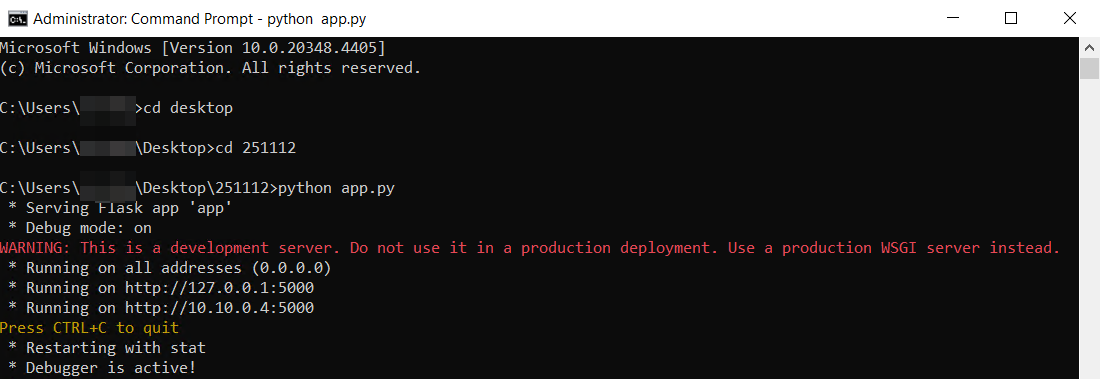
Flask 프로젝트가 위치한 상위 폴더에서 python app.py 실행
오류가 나면 flask, python-dotenv-request가 정상적으로 설치되어 있는지 확인하고 다시 설치
pip install flask python-dotenv requests
Chatbot 구현 완료
# localhost:5000 접속

# 사내 문서 업로드
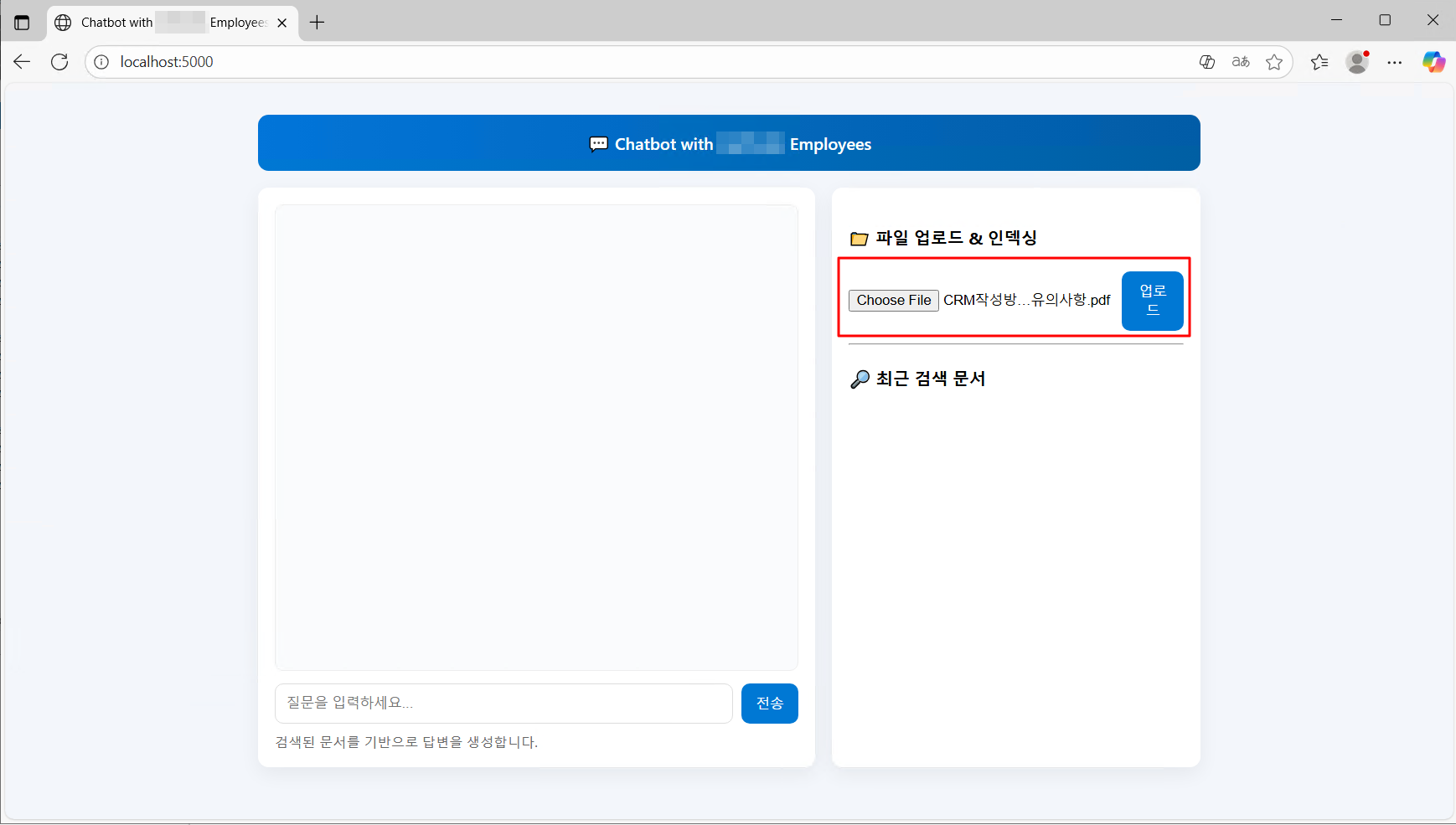
사내 문서 중 하나를 업로드해본다.
# 답변 확인

업로드 및 인덱싱이 되었다.
LLM에게 질의하여 답변을 제대로 받아오는지도 확인한다.
문서 기반으로 답변을 잘 받아오는 것을 확인하고, 어떤 문서에서 해당 답변을 가져왔는지 확인이 된다.
# 기타 확인

업로드 한 문서가 blob에도 업로드 된 것을 확인 가능하다.
기타
# 로컬 PC에서 VM의 공인 IP를 통해 Web으로 바로 접근하게끔 하고싶다면?
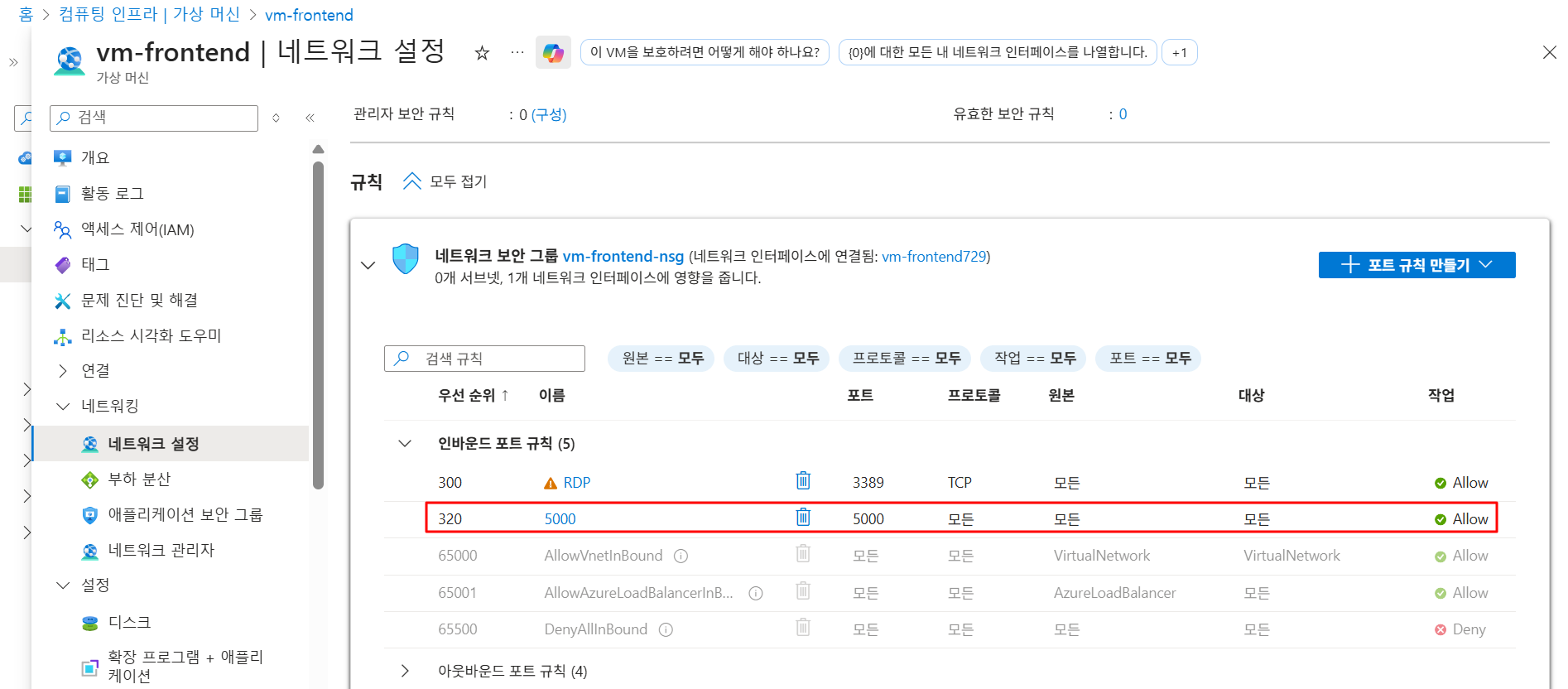
VM에 연결된 NSG의 인바운드 포트 규칙 5000번 열어주기
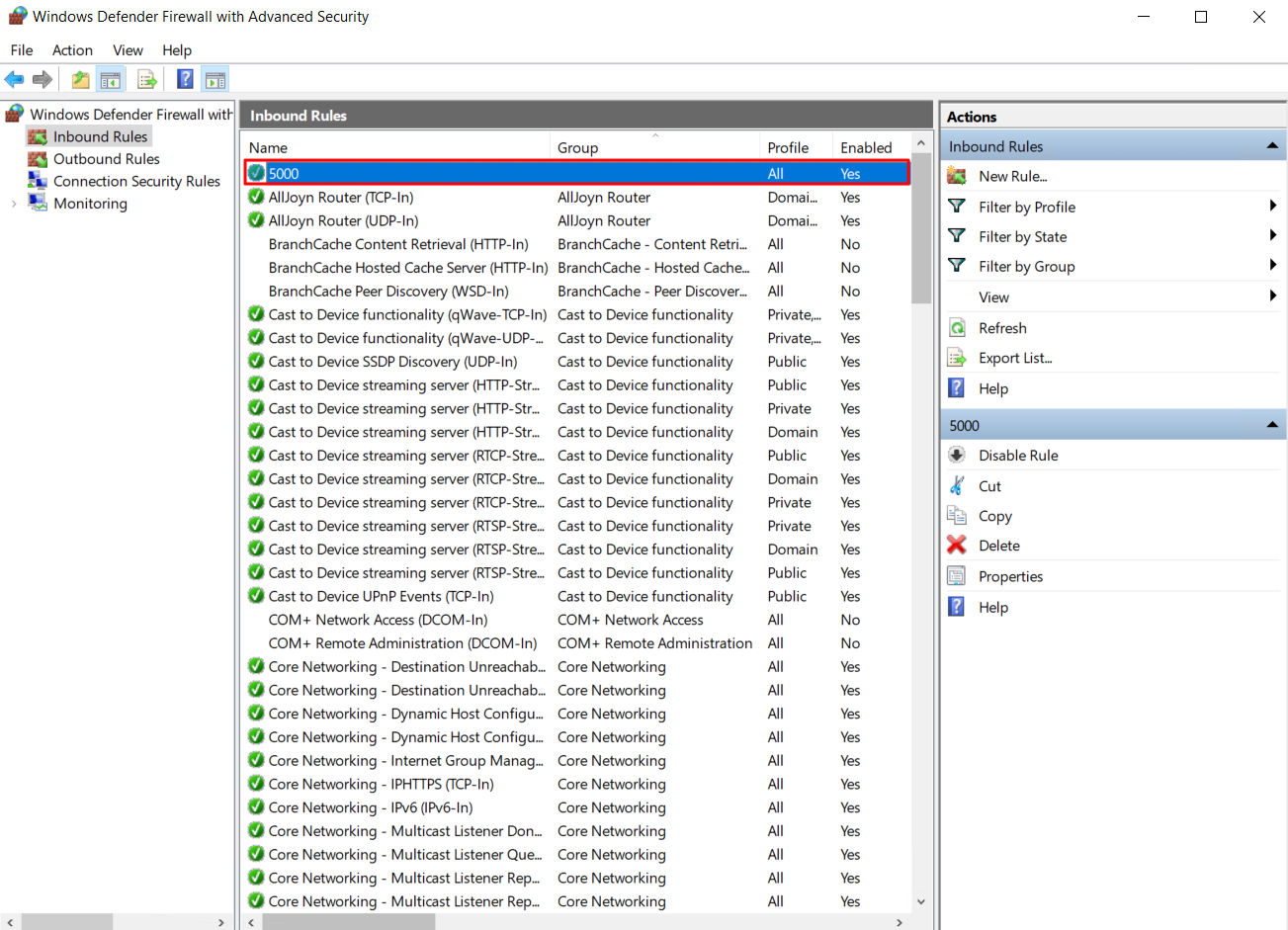
VM 내부 Windows OS 방화벽에서 Inbound Rule에 5000번 추가

로컬 PC에서 Web으로 접근 가능
'Azure' 카테고리의 다른 글
[Migration] 6R (0) 2026.01.27 APIM을 사용하여 Azure AI LLM에서 토큰 사용 추적 (0) 2025.11.24 [Microsoft Foundry] Microsoft Foundry를 활용한 LLM + RAG 구현 (2) (0) 2025.11.19 [Microsoft Foundry] Microsoft Foundry를 활용한 LLM + RAG 구현 (1) (0) 2025.11.19 검색 증강 생성 및 인덱스 (0) 2025.11.04